
Your phone knows things about you that your closest friends don’t. Not because it’s psychic, but because it’s always on, always permitted, and almost never asked to explain itself. Most people grant microphone and camera access the first time an app requests it, click through without reading, and then spend the next six months wondering why an ad appeared for something they only whispered about in the kitchen.
A Northeastern University study that analyzed more than 17,000 popular Android apps found no evidence that apps were secretly activating smartphone microphones to record conversations, though researchers did identify other privacy concerns, including some apps capturing screenshots or recording screen activity. The phone probably isn’t eavesdropping the way a spy thriller would have it. What it is doing is building a detailed picture of who you are from the data you hand over voluntarily, one permission at a time.
A leaked pitch deck from CMG Local Solutions advertised an “active listening” ad-targeting capability using microphones in smartphones and smart TVs. The document named Google as a partner in the capability. Google removed CMG from its Partners Program after reviewing the claim. Whether microphone audio is the cause or not, the appetite to collect and use your data is not in dispute. What follows is a look at 11 apps that have documented histories of requesting, using, or expanding their access to your microphone, camera, or both, and what you can actually do about each one.
1. Facebook
Facebook has been at the center of the phone-listening conversation longer than almost any other app. Meta has stated publicly and repeatedly that it does not use microphone audio to target ads, and Mark Zuckerberg stated so under oath during congressional testimony. That denial is worth knowing, but it doesn’t fully close the conversation, because microphone access is only part of the picture. Meta has accumulated multiple GDPR fines in the EU, including a record €1.2 billion penalty in 2023 for unlawful data transfers, a €390 million fine for behavioral advertising violations, a €405 million fine for children’s privacy failures, and a €265 million fine for failing to protect users from data scraping.
When you grant Facebook microphone access, the legitimate use cases are video posts, voice messages in Messenger, and live videos. Many users leave that permission active permanently, even when they never create video content. To tighten this: on iPhone, go to Settings, scroll to Facebook, and set Microphone to “Ask Next Time Or When I Share.” On Android, go to Settings, then Apps, find Facebook, tap Permissions, and set Microphone to “Ask every time.” Neither change breaks the app’s core function for most users.
2. Instagram
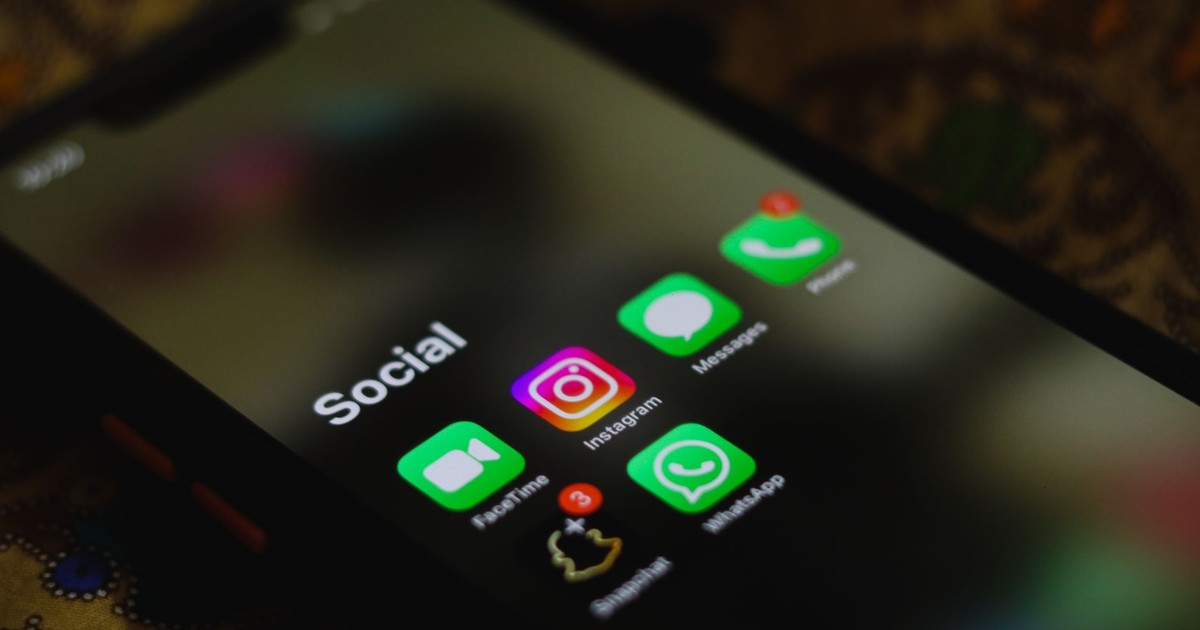
Instagram is owned by Meta, so the corporate-level privacy arguments are the same, but the app’s design creates a more specific concern. The entire interface is built around the camera. Stories, Reels, Live, and even DMs with voice notes all pull from your microphone and camera on a regular basis. Meta’s products, including Instagram, have faced sustained regulatory scrutiny across multiple jurisdictions for privacy practices, with EU regulators consistently finding violations across advertising data use, children’s privacy, and data breach disclosure.
Unlike Facebook, Instagram is harder to use in a stripped-down way if you revoke camera and microphone access entirely, because so much of the content format relies on them. The practical fix is to set microphone and camera permissions to “While Using the App” rather than “Always.” This means Instagram can access those sensors when you’re actively in the app and recording, but not at any other point. On both iOS and Android, this is done through the app’s permission settings in your phone’s main Settings menu.
3. TikTok

TikTok’s permission requests are extensive: microphone, camera, location, contacts, and clipboard access have all been documented as part of the app’s standard setup. The app’s core function, short-form video creation, genuinely requires the camera and microphone. The questions are about what happens when you’re not actively filming.
TikTok has faced sustained scrutiny from governments in multiple countries over data handling practices, particularly regarding what data flows to parent company ByteDance. The practical privacy step is the same as for other video-forward social apps: set camera and microphone to “While Using the App.” On Android, go to Settings, then Apps, then TikTok, then Permissions, and change microphone and camera to “Ask every time.” On iPhone, go to Settings, scroll to TikTok, and toggle each permission individually. Location is worth disabling entirely unless you use location-based features deliberately.
4. Snapchat
Snapchat opens directly to the camera by default. This is a design choice, not a bug, and it tells you something about the assumptions the app makes regarding your hardware. The camera is the product. Lenses, voice-altering features, and Snap Map all draw from your camera, microphone, and location simultaneously in some use cases.
Snap’s own documentation acknowledges that some features use information about your face, hands, and voice to make Lenses work, and that data may count as biometric information under some state laws. Illinois requires written consent before collecting biometric data and grants individuals a private right of action, while Texas and Washington have biometric statutes that are enforced solely by the state attorney general. If you’re in any of those states and use Lens features frequently, it’s worth reading Snap’s biometric data disclosures. To reduce exposure: on iPhone, go to Settings, scroll to Snapchat, and disable Microphone, Camera, and Location unless you use those features actively. On Android, go to Settings, then Apps, then Snapchat, then Permissions, and set camera and microphone to “Ask every time.”
5. WhatsApp
WhatsApp’s encryption record is genuinely strong. End-to-end encryption for messages and calls is real and meaningful, and it’s one of the reasons the app is recommended in privacy-conscious circles. But strong encryption during transmission doesn’t mean the app has no access to your microphone or camera when you’re actively using it, because it obviously does: calls, video calls, voice notes, and video status updates all require that access.
The subtler issue is that WhatsApp is owned by Meta, which means it sits inside the same advertising infrastructure even if the app itself handles your message content differently. WhatsApp’s help documentation recommends that Android users allow camera access only “while using the app,” which is a practical acknowledgment that persistent access isn’t necessary. Apply that same logic to microphone permissions on both platforms. Voice notes are a reason to grant access. The app running in the background is not.
6. Google Assistant / Gemini
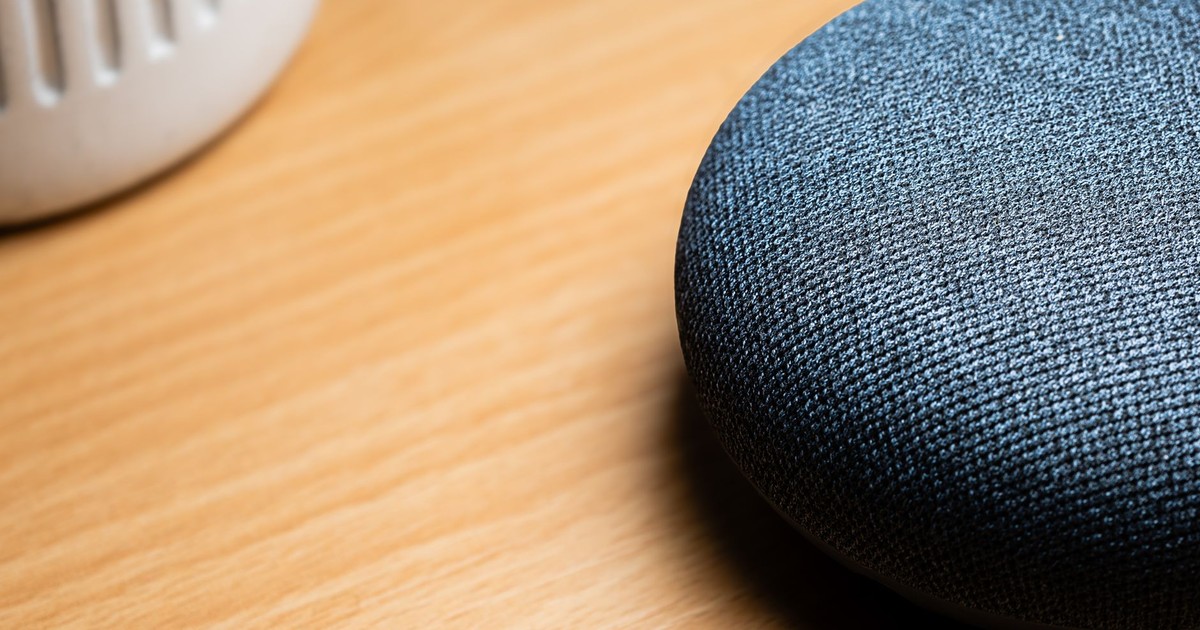
Voice assistants are perhaps the most honest example of apps recording you, because the entire product is built around listening. Google states that its assistant listens only for wake words and does not process other audio for advertising purposes, a policy that carries forward to Gemini as it replaces Google Assistant across Android devices. Always-on wake word detection means the microphone is technically active, waiting, not recording, at all times.
The fix here is not necessarily deleting the assistant but deciding whether you actually use it. If you trigger Google Assistant or Gemini fewer than a few times a week, the always-on wake word feature is giving up more than it’s returning. On Android, go to Settings, then Apps, find the Google app, tap Permissions, and disable Microphone, or go into the Google app itself, tap your profile photo, then Settings, then Voice, and turn off “Hey Google” detection. On iPhone, the same setting lives in the Google app under Settings, then Voice.
7. Siri

Apple, following a $95 million class-action settlement finalized in early 2025, emphasized that Siri data has never been used to build marketing profiles or sold to third parties. Plaintiffs cited examples of Siri apparently picking up private conversations and triggering related ads. Apple did not admit wrongdoing, but the scale of the settlement signaled that accidental recordings were a real and documented problem.
The key word there is accidental. Siri’s always-on “Hey Siri” detection creates the same structural situation as any other wake-word product: the microphone must be in a state of readiness to catch the phrase. If you find that you rarely use Siri intentionally, disabling “Listen for Hey Siri” (or “Hey Siri and Siri” in newer iOS versions) removes that baseline activity. This is in Settings, then Siri and Search. You can keep Siri available for when you deliberately press the side button while eliminating the passive listening component entirely.
8. Amazon Alexa
The Alexa app on your phone is the companion to the Echo devices in your home, but it also carries its own microphone permissions and its own history of controversy. In July 2025, U.S. District Judge Robert Lasnik in Seattle certified a nationwide class action allowing registered Alexa device owners to pursue claims that Amazon deceptively recorded private conversations and retained them for commercial use, including training its AI models. That case is ongoing as of mid-2026, which means the question of what Amazon actually did with retained recordings has not been legally resolved.
On your phone, the Alexa app requests microphone access to enable voice commands through the app itself. If you use Echo devices at home and manage them through the app but don’t use the app’s own voice features, you can revoke microphone access from the app on your phone without losing control of your home devices. On both iOS and Android, this is in your phone’s Settings under the Alexa app’s permissions. Separately, within the Alexa app itself, you can go to More, then Settings, then Alexa Privacy, then Manage Your Alexa Data, and enable automatic deletion of voice recordings on a rolling basis.
9. Spotify
Spotify’s inclusion on this list surprises people, because the app is primarily a music player. But Spotify has held microphone permissions in some configurations, and its terms of service have historically included language about collecting voice data when features like voice search are used. The more documented concern is location data: Spotify’s privacy policy has described collecting sensor data including information about nearby devices, which goes well beyond what a music player seems to need.
You can use Spotify without granting it microphone access at all. Voice search is the only feature you’d lose, and most users never touch it. On iPhone, go to Settings, scroll to Spotify, and toggle off Microphone. On Android, go to Settings, then Apps, find Spotify, tap Permissions, and set Microphone to “Don’t allow.” The app works identically for playback, playlist management, and podcast listening with that permission removed.
10. Weather Apps
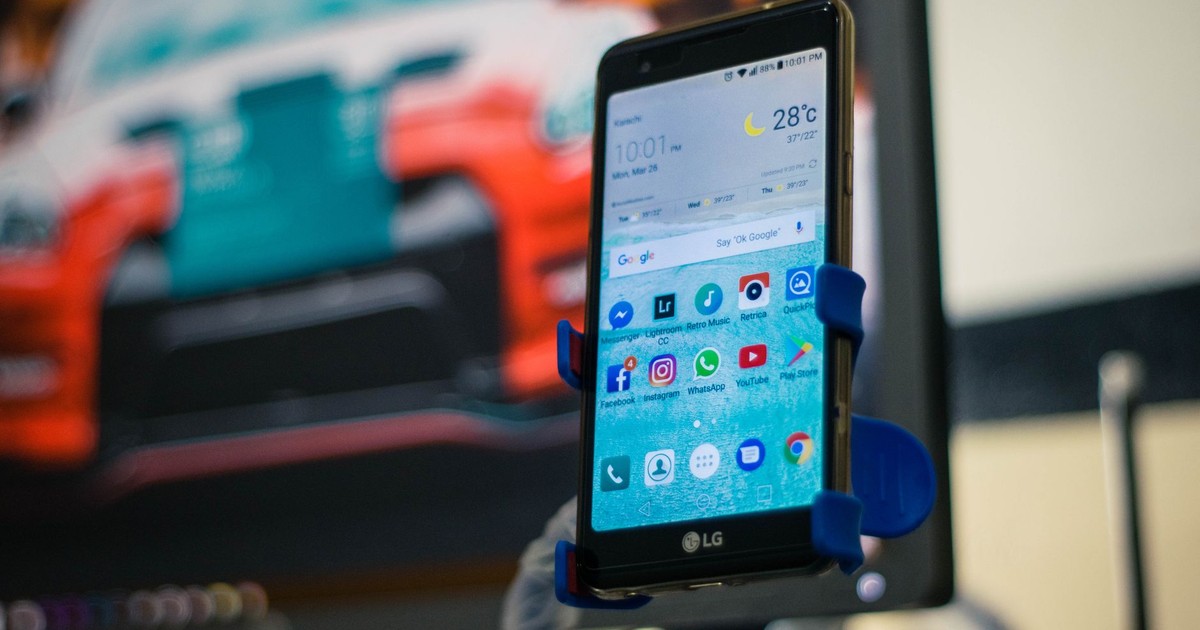
Third-party weather apps are one of the most consistent offenders in privacy audits, not for microphone access but for location data that gets sold to data brokers. The phone’s understanding of where you are is itself a form of surveillance, and many weather apps are built around monetizing that location history rather than providing forecasts. Several weather apps have faced regulatory action for selling precise location data without adequate disclosure.
Reviewing your phone’s location permissions is worth doing regularly, and weather apps are a good place to start. A weather app needs your approximate location to function. It does not need precise GPS coordinates, and it does not need location access when you’re not using it. On both iOS and Android, set weather app location to “While Using the App” and select “Approximate Location” rather than precise, if your phone gives you that option. On iPhone this is in Settings, then the app name, then Location. On Android it’s in Settings, then Apps, then the app name, then Permissions, then Location.
11. Free Games and Utility Apps
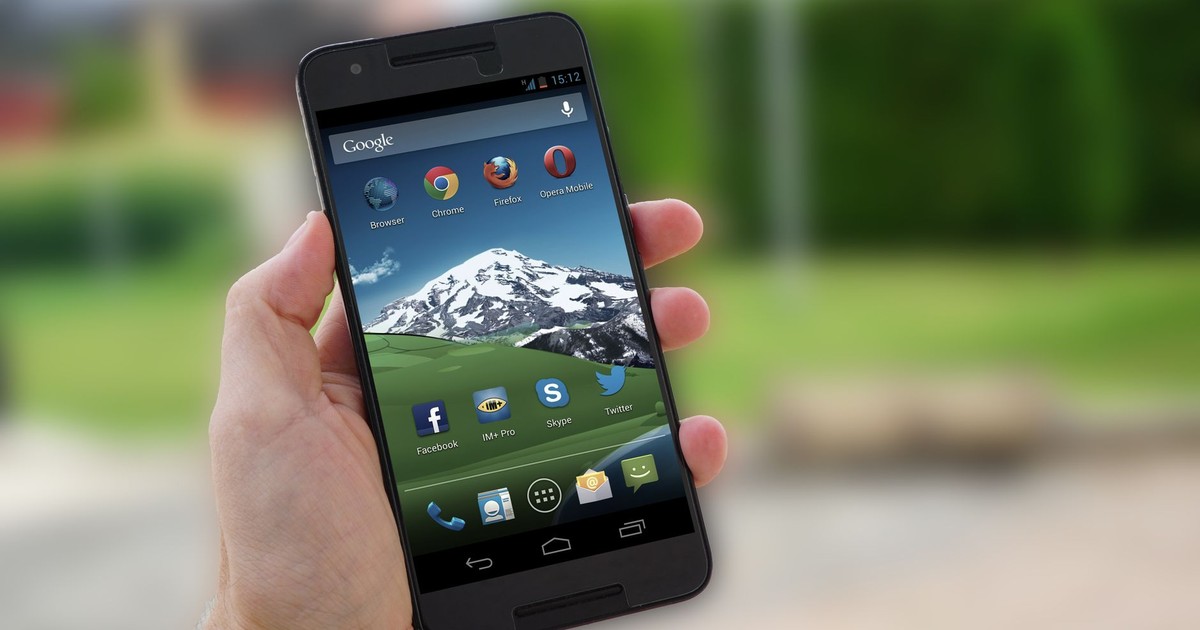
The category of free games, flashlight apps, QR code scanners, and random utility apps collectively represents the highest-risk group on any phone, because these apps often request permissions that have no plausible relationship to their function. A flashlight app does not need your microphone. A solitaire game does not need your camera. When an app requests access to hardware it has no functional reason to use, that access is almost certainly there to collect data for advertising or resale.
Within apps, embedded software development kits (SDKs) leverage permissions granted to host apps, tracking everything from app usage and location to the unique way you interact with your device. These data points flow into the sprawling advertising and consumer profile network, feeding into the real-time bidding process that underlies digital advertising. Free games are particularly effective delivery vehicles for these SDKs because the download incentive is clear and the permission requests feel low-stakes. Before downloading any free app, check what permissions it’s asking for. If a game or utility is requesting microphone or camera access on installation, ask yourself why. If you can’t answer that, don’t grant it.
What to Actually Do Right Now
Go to your phone’s Settings and open the Privacy or Permissions section. Every major smartphone operating system now shows you a consolidated view of which apps have accessed your microphone or camera in the recent past. On iPhone, this is in Settings, then Privacy and Security, then Microphone (or Camera). On Android, it’s in Settings, then Privacy, then Permission Manager. The list will almost certainly surprise you. Apps you haven’t opened in months will appear. Games will appear. Something you downloaded once and forgot about will appear.
Microphone access set to “While Using the App” is reasonable for apps that genuinely need it. Camera access set to “Always” for an app that you use twice a month is not. The apps recording you don’t always announce it. But your phone keeps a record of every app that has touched your microphone or camera, and it’s right there in Settings, waiting for you to look. Most people never do. That’s exactly what the apps are counting on.
Disclaimer: This information is not intended to be a substitute for professional medical advice, diagnosis, or treatment and is for information only. Always seek the advice of your physician or another qualified health provider with any questions about your medical condition and/or current medication. Do not disregard professional medical advice or delay seeking advice or treatment because of something you have read here.
AI Disclaimer: This article was created with the assistance of AI tools and reviewed by a human editor.